
Unlock Your Apple Watch: 10 Essential Features to Activate
Your Apple Watch comes with many features ready to go, but several key functions require manual activation. Here are 10 essential settings to enhance your wearable experience, from sleep tracking to contactless payments.

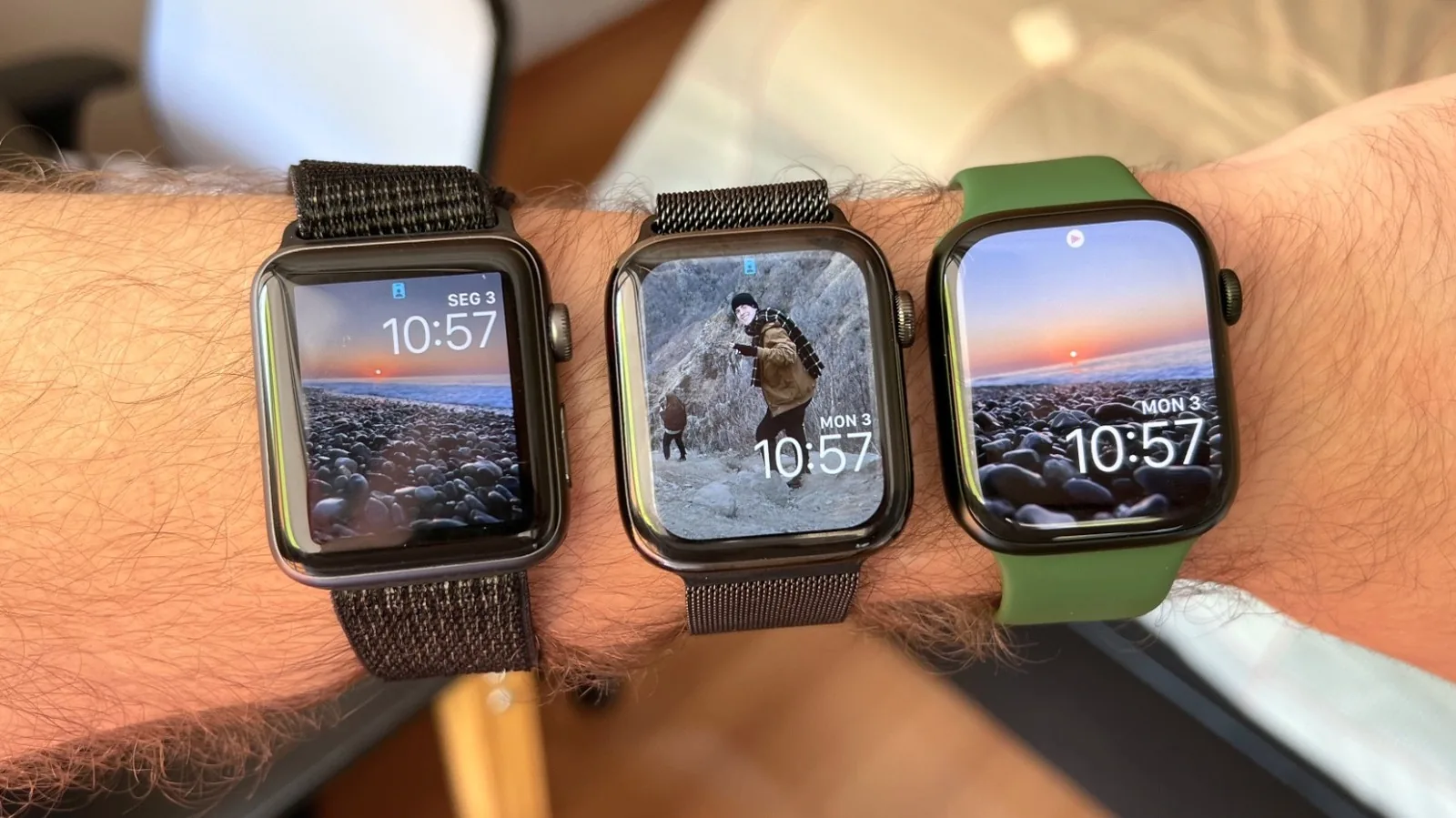
The Apple Watch, a popular wearable companion, offers a wealth of built-in capabilities right out of the box, seamlessly integrating with your iPhone for notifications, workout tracking, and device pairing. However, to truly elevate your smartwatch experience and unlock its full potential, numerous essential features require manual activation. These enhancements can range from advanced health monitoring and fitness streak protection to convenient communication and payment solutions, available on both the latest models and older, still-capable devices.
One of the most impactful features to enable is the Sleep Schedule. This setting, available for years, allows your Apple Watch to not only track your sleep patterns but also monitor critical metrics like wrist temperature and blood oxygen levels. By configuring a Sleep Focus mode via your iPhone, your watch can provide deeper insights into your sleep quality, interruptions, and goal achievement. To set this up, open the Focus control on your iPhone, select Sleep mode, and configure your schedule, including a wind-down period.
Complementing the Sleep Focus is the ability to automatically swap Watch Faces based on your current activity or focus. This feature allows for a more dynamic and personalized user interface, where different Watch Faces can be assigned to various Focus Modes, such as 'Work,' 'Workout,' or 'Relaxation,' reflecting the time of day or your current task.
Enhancing Fitness and Activity Tracking
With the introduction of watchOS 11, Apple provided users with the crucial ability to pause their Activity rings. This update is a significant boon for those striving to maintain fitness streaks, allowing you to temporarily halt ring progress to accommodate rest days, recovery from injury, or vacations without breaking your streak. You can pause for a single day, until the following Monday, or for an extended period. For those seeking a more nuanced approach to activity tracking, third-party apps like Gentler Streak offer alternative philosophies that emphasize balanced training and the importance of rest.
Beyond pausing rings, users can also customize workout tracking to a granular level. Within the Workouts app, select an exercise and tap the three dots to define specific rules or metrics tailored to your activity. This personalization is particularly beneficial for runners setting up outdoor run parameters or swimmers defining pool lengths and stroke types, enabling users to gain more precise data from their sessions.
For those who prefer textual communication or find voice commands inconvenient, enabling Type to Siri is a game-changer. Introduced with the Apple Watch Series 7, this feature allows you to use the on-screen QWERTY keyboard to input queries. Access it by pressing and holding the Digital Crown. Future enhancements to Siri, expected with upcoming watchOS versions, promise to make this text-based interaction even more powerful by leveraging personal data and web searches.
Managing the influx of information is key, making customizing notification permissions essential. While receiving immediate alerts on your wrist is convenient, excessive or irrelevant notifications can become a nuisance. You can adjust these settings directly on your iPhone through the Watch app, allowing you to turn off notifications entirely, set them to deliver quietly, or fine-tune app-specific permissions to ensure you only receive alerts that matter.
For owners of newer Apple Watch models (Series 9, Ultra 2, and later), Precision Finding for AirTags offers a sophisticated way to locate misplaced items. Utilizing the U2 chip, compatible watches can guide you directly to your AirTag using visual and haptic feedback. To use this, add the Find AirTag widget to your Control Center and select the item you wish to find.
The customizable Control Center on the Apple Watch, much like its iPhone counterpart, allows users to tailor their most-used tools and widgets for quick access. After watchOS 11, you can access an 'Edit' mode in the Control Center to remove unused functions and add new ones, including third-party app integrations, streamlining your daily interactions.
Reviving an older but still useful tool, the Walkie-Talkie app, available since watchOS 5, offers a rapid push-to-talk communication method. After inviting contacts and ensuring they accept, you can engage in quick voice conversations by pressing and holding the talk button. Notifications of incoming messages arrive via haptic feedback.
Finally, ensuring Apple Pay is set up is a fundamental step for leveraging your watch's contactless payment capabilities. While prompted during the initial setup, you can add or manage credit and debit cards in the Wallet & Apple Pay section of the Watch app on your iPhone. Once configured, a double-click of the Side Button initiates payment, and features like Express Transit offer seamless authentication for public transport in supported cities.